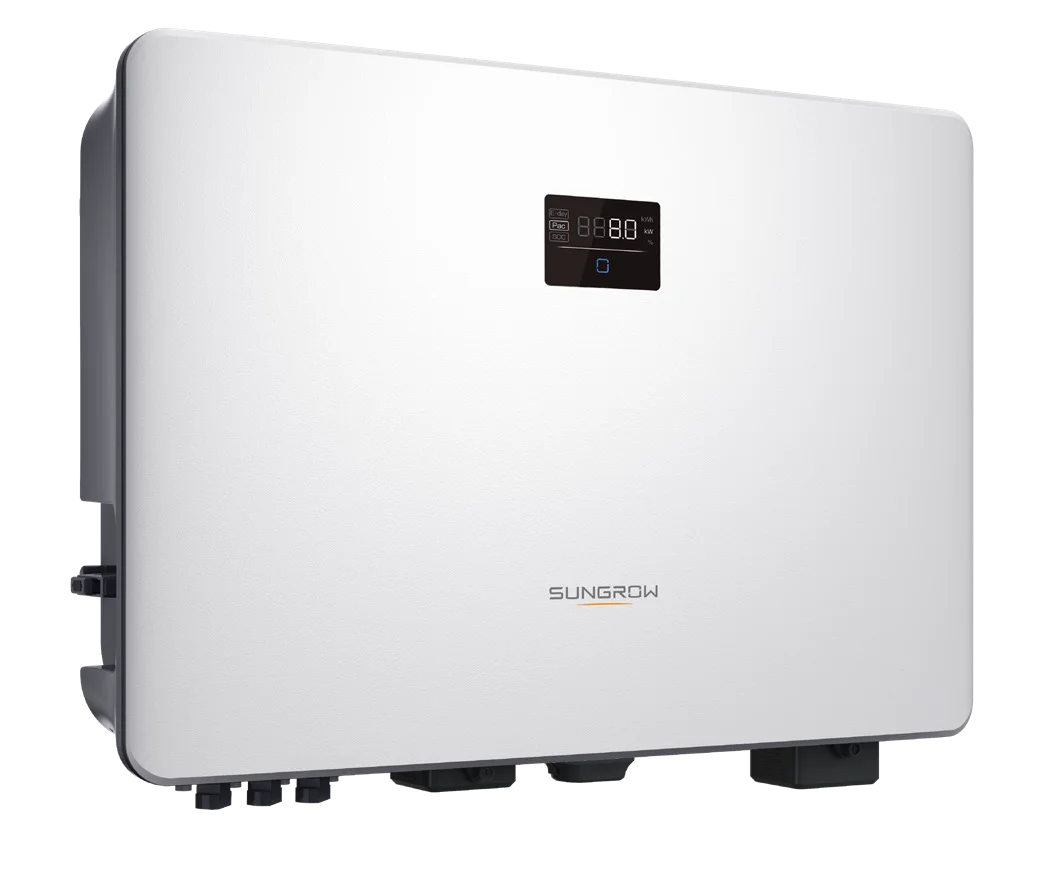
Sungrow Inverters Wi-Fi Reconnect
Sungrow SG Series
(For all SG-Series Sungrow Inverters with WiFi Dongle)
1. Check your WiFi signal strength
Stand near your Sungrow inverter with your phone and confirm your home WiFi network is visible.
If you can’t see your WiFi network near the inverter, install a WiFi extender or use a LAN cable (available on most CX models).
Without a detectable signal, the inverter cannot connect to the internet.
2. Restart the inverter if recently disconnected
Turn AC OFF using the main solar AC isolator near your switchboard.
Turn DC OFF using the isolator located under or beside the inverter.
Wait one minute until all lights and display indicators turn off.
Turn DC ON, then AC ON again.
Wait a few minutes for the inverter to restart and check if the NET or WLAN light becomes solid green.
If not connected, continue below.
3. Enable the inverter’s WiFi hotspot
On your Sungrow inverter’s WiFi dongle, press the multifunctional button three times quickly.
This will activate the inverter’s internal hotspot, allowing your phone to connect.
4. Connect your phone to the Sungrow hotspot
Open the iSolarCloud app
Tap Support in the bottom navigation bar.
Choose “Local Access”
Under the Commissioning Tools section, tap Local Access.
5. Scan the QR code
A “Scan to Connect” camera page will appear.
Scan the QR code located on your Sungrow inverter WiFi dongle.
When prompted, tap Join to connect your phone to the inverter hotspot.
6. Enter the login details
An identity verification page will appear.
Enter the default credentials below:
- Account: user
- Password: pw1111
Then press Verification to continue.
7. Connect the inverter to your home WiFi
Once logged in, tap More in the bottom navigation bar.
Select “WLAN Configuration”
This opens the WiFi setup page.
Select your home network
A list of available WiFi networks will appear.
Find and select your home WiFi network, then enter your password.
8. Verify connection status
The app will confirm once the inverter is connected successfully.
Your Sungrow inverter’s WLAN light will now be solid blue and unblinking, indicating a stable WiFi connection.
7. Troubleshooting tips
Ensure your WiFi router’s 2.4 GHz band is active — Sungrow inverters do not connect to 5 GHz networks.
Check that your WiFi password is correct, including capital letters and symbols.
If the inverter doesn’t appear in iSolarCloud, repeat Step 3 to re-enable hotspot mode.
For commercial systems, a wired LAN connection is recommended for reliable data transmission.
If problems persist, restart both your inverter and router, or contact your installer or Sungrow Service.